A new version of the Architect Registration Examination® (ARE®) 5.0 Guidelines that reflects upcoming changes to online proctoring requirements on June 1, 2026, is now available. Download the new ARE Guidelines to learn more about the new secondary camera and Windows Operating System policies.
These updates are intended to enhance the security of online-proctored exams, and do not impact the exam’s content, format, or fees.
Secondary Camera on Mobile Device
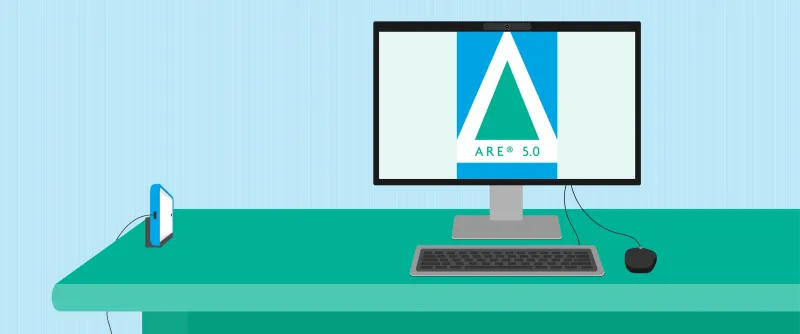
If you are planning to test via online proctoring on or after June 1, you must set up a mobile device as a secondary camera. This extra camera is a new exam security measure that will be used in addition to the webcam on the computer that you use to take the test. The device you use for the secondary camera must be a fully charged smartphone that is connected to a power outlet or adaptor and connected to the internet through WiFi. It is also recommended that your device is connected to a cellular network in case your WiFi connection is interrupted. The device’s operating system must be iOS 12 or Android 8 or later with working front-facing and back-facing cameras.
During the online check-in process, you will scan a QR code that appears on your computer screen to begin the secondary camera setup. After allowing access to your microphone and camera, you will use your phone to verify your ID and complete a room scan. At this point, PSI’s online check-in specialist will help you adjust your device’s position directly to your right or left, approximately two to four feet away from your keyboard.
You may prop up your device with a sturdy, adjustable phone stand or heavy object. Your phone will need to be horizontal and in landscape mode to capture your entire computer screen, your full keyboard and mouse or trackpad, both hands while typing, and your side profile. You must stay within the camera frame during your exam and not stretch beyond it.
Note: During scheduled breaks, your phone should remain in its original position on its support item. If you use the device or alter its setup during scheduled breaks, a QR code will cover the screen (including the break timer), and you will need to complete the smartphone connection and camera placement process again before returning to your exam.
Learn more about the requirements for testing with a secondary camera on your mobile device.
If you have scheduled an online-proctored appointment on or after June 1 and are not able to comply with the secondary camera policy, you may reschedule your appointment at no cost to you. If you need help rescheduling your appointment, please contact us.
Windows Operating System
If you are planning to test via online proctoring on or after June 1, you must use a device with a native (OEM) Windows Operating System (i.e., not a Mac device running Windows). If you have scheduled an online-proctored appointment on or after June 1 and will not be able to secure a device with a Windows Operating System, you may reschedule your appointment at no cost to you. If you need help rescheduling your appointment, please contact us.
New: Integrated Webcams Allowed
Because all online-proctored appointments will include a secondary camera, you will no longer be required to use an external webcam as your primary camera. Integrated webcams will be acceptable for use as a primary camera, providing a front-facing view.
If your computer or monitor does not have an integrated webcam, you must use an external webcam as your primary camera. If your computer has multiple webcams, disable or disconnect any cameras not being used for testing prior to launching the exam. Note: It is still recommended to use a monitor with a display that is at least 19 inches—smaller monitors or lower resolutions reduce image clarity and may require additional scrolling. Learn more in the new ARE Guidelines.
Have questions? Contact us online or by calling our Customer Relations team at 202-879-0520.